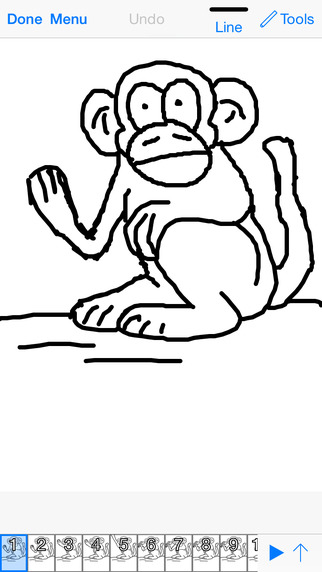
2nd graders have completed their alien animations. Students had an opportunity to practice figure drawing and drawing in profile while using the Doink Animation App on the iPads to create a running alien in four poses. Find the lesson description here. Everyone in second grade is finished with their Aliens running loose in the art room animation. I moved their videos to iMovie, added some sound effects and music, and labeled each student's alien with his/her name. All four movies are now uploaded to YouTube and you can find the links below. I hope you enjoy them as much as we did making them!
For the last two weeks, 2nd graders have been experimenting with animation in the art room. The first project focused on flip books creating a ball bouncing. Now, students are using the Doink Animation App on the iPads to create a running alien in four poses. The idea for this project is not originally mine, but from Tricia Fuglestad, an elementary art teacher at Dryden Elementary in Arlington Heights, Illinois.
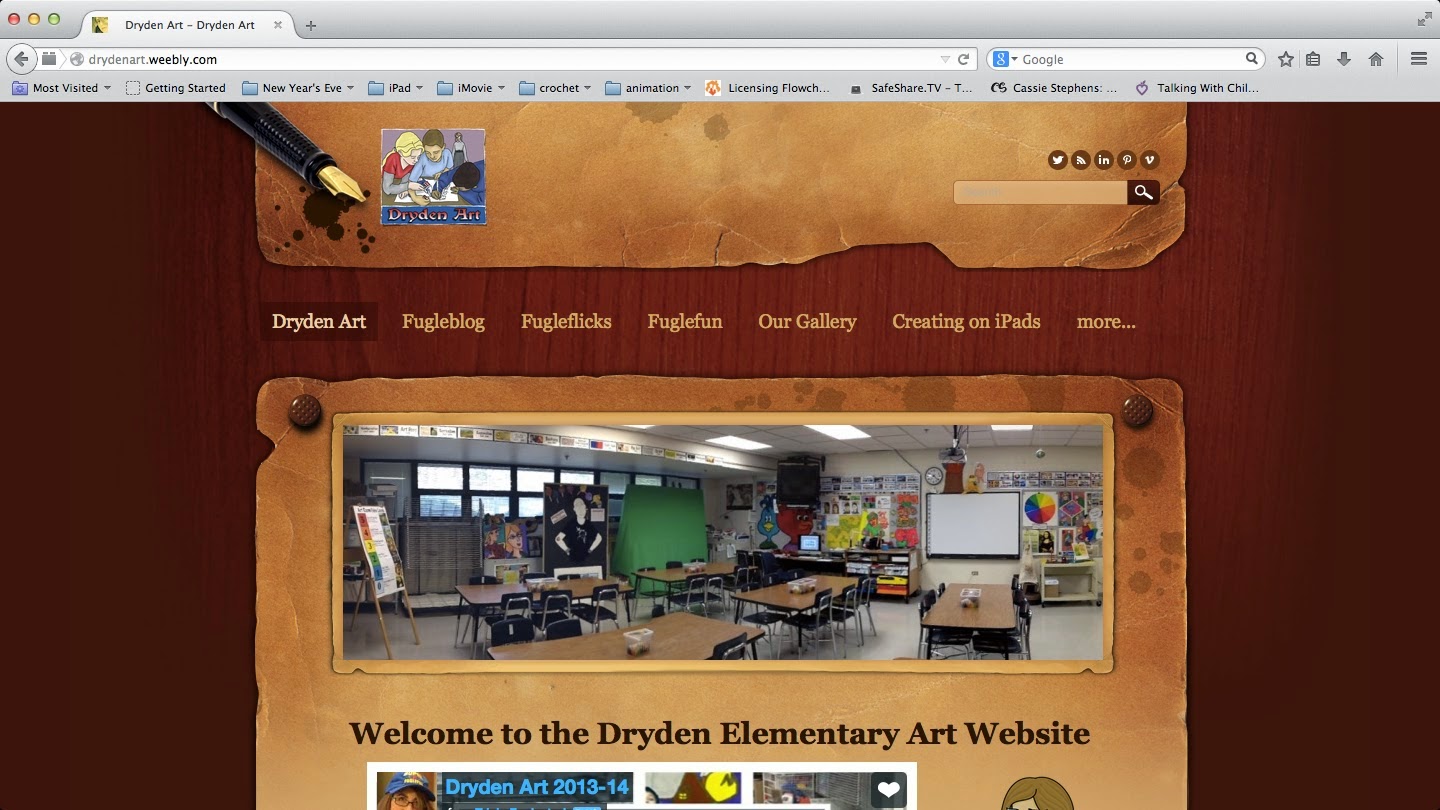
Tricia Fuglestad's blog, Dryden Elementary Art Website
Using the Doink iPad Animation App, 2nd graders drew an original alien in four sequential poses to create the illusion that it is running. Once completed with four poses, students added the alien to a composition of a photo from the art room to give the illusion that the alien is entering from the left and exiting to the right of the photo and running rampant within our art room!
Composition directions for Alien running loose in the Art Room.
Once students are finished with their alien running in the art room, they may make a 2nd composition within DOINK choosing either to draw a 2nd alien (with four new poses) running in the art room or draw the alien's home planet and add the first alien running to the home planet in a new composition. If students finish composition two, they may make a third composition of their own free choice.
For the last two weeks, 2nd graders have been experimenting with
animation in the art room. The first project focused on flip books creating a ball bouncing, a stick figure moving, and a free choice flip book animation.
Now, students are using the Doink Animation App on the iPads to create a
running alien in four poses. The idea for this project is not
originally mine but from Tricia Fuglestad, an elementary art teacher at Dryden Elementary in Arlington Heights, Illinois.
Tricia Fuglestad's blog, Dryden Elementary Art Website
Using the Doink iPad Animation App,
2nd graders drew an original alien in four sequential poses to create
the illusion that it is running. Once completed with four poses,
students added the alien to a composition of a photo from the art room
to give the illusion that the alien is entering from the left and
exiting to the right of the photo and running rampant within our art
room!
Composition directions for Alien running loose in the Art Room.
Once students are finished with their alien running in the art room, they may make a 2nd composition within DOINK and play and animate their own items within the app using the cloud feature.
I have received many questions about the stop motion and animation apps I use in the elementary art room at my school. I wanted to give a list of the top four applications that I have used this last school year.
#1 iMotion by Fingerlab
iMotion is a time-lapse and stop-motion app for iOS. You can take pictures, edit your movie and export 1080p & 720p HD videos to your device or to Youtube. Time-lapse
is a technique which accelerates movement. It can be
used to photograph cloudscapes, plants growing, crowds... Stop motion is an animation technique which makes a physically manipulated object look like it’s moving on its own. An iPad tripod may be necessary to keep the camera function stable and prevent a shaky movie when creating stop motion animations. A free trial version can be downloaded, but you can upgrade to the full version for $2.99.
#2 Animation & Drawing by Do Ink
This is a fun and creative app to
make animations on your iPad. The app was designed to be easy for
beginners and young animators. Second grade students at West Central used this app to animate our Alien invasion of the art room. Use the drawing editor to create vector artwork and
frame-by-frame (flip book) animations. Use the composition editor to
combine your artwork, along with props from the Do Ink prop library, into more complex scenes. Save to the camera roll,
then share your creations. This app is a little more expensive with a cost of $4.99 per download, but you can purchase the "Creativity Bundle" by Doink for $5.99 and gain access to the "Green Screen" app used with our landscape news reports.
#3 Stop Motion in iMovie (Mac)
Although not currently on iPad, but available on MACs. This is the software I use most often for stop motion animations. iMovie is packaged
for free with all new iMacs as of 2003 and can very easily do the job of stop motion animation, even if it wasn’t designed specifically for stop motion. All the
features are there (sound, music, image duration, etc.) and great results can be teased out of the software. Speaking from experience, you’ll want to look for the latest tutorial online
since the interface can (and does) change dramatically with each update.
#4 Easy Animate by Woodland Boys Software
Easy Animate makes it simple to draw and create animations. This is a free downloadable app developed by a teenager. Isn't that awesome! This app offers several choices of frames per second rates and onion skinning and is very easy to use for even young ages. The recent updated version fixed many glitches, so hopefully it works smoothly now without any freezing issues.
For the last two weeks, 2nd graders have been experimenting with animation in the art room. The first project focused on flip books as you can see in this previous post. Now, students are using the Doink Animation App on the iPads to create a running alien in four poses. The idea for this project is not originally mine but from Tricia Fuglestad, an elementary art teacher at Dryden Elementary in Arlington Heights, Illinois.
Tricia Fuglestad's blog, Dryden Elementary Art Website
Using the Doink iPad Animation App, 2nd graders drew an original alien in four sequential poses to create the illusion that it is running. Once completed with four poses, students added the alien to a composition of a photo from the art room to give the illusion that the alien is entering from the left and exiting to the right of the photo and running rampant within our art room!
Composition directions for Alien running loose in the Art Room.
After students have completed the composition of their alien running loose in the art room, students will then draw an alien landscape including: a foreground, middle ground, background, a yellow horizon line, trees or plants in the foreground, a blue shape in the middle ground, and a green shape in the background. Once the landscape is complete, 2nd graders will then create a composition within the animation app using the landscape, alien running (from our first animation), and a flying alien spaceship.
Today, our district is hosting a regional in-service with four other area school districts and I am co-presenting with the technology coordinator from the Humboldt Elementary Building. We currently have 35 registered for our class "Engaging Student Creativity with iMovie and Stop Motion Animation". I hope the resources are helpful to those who attend. For more information check out the presentation found on YouTube, as well as the documents that can be found in links below.
January 2015 In-service Presentation
Character, Setting, Plot Planning Sheet
Individual Character Planning Sheet
Storyboard Template
To download the Power Point file or the file images above as PDF's, go to my old classroom website.